Summarize Content With:




Your iPhone can now screen unknown calls on its own and transcribe voicemails live. For many private users, that's enough. For a business that needs to answer questions, book appointments and pass urgent calls on, an AI phone assistant is the next step. In this comparison you'll see what each can do, where the limits are, and how to forward your iPhone to an AI assistant.
What iPhone call screening does
Apple offers two features that are often described as an "AI answering machine": Call Screening for unknown callers and Live Voicemail.
Call Screening
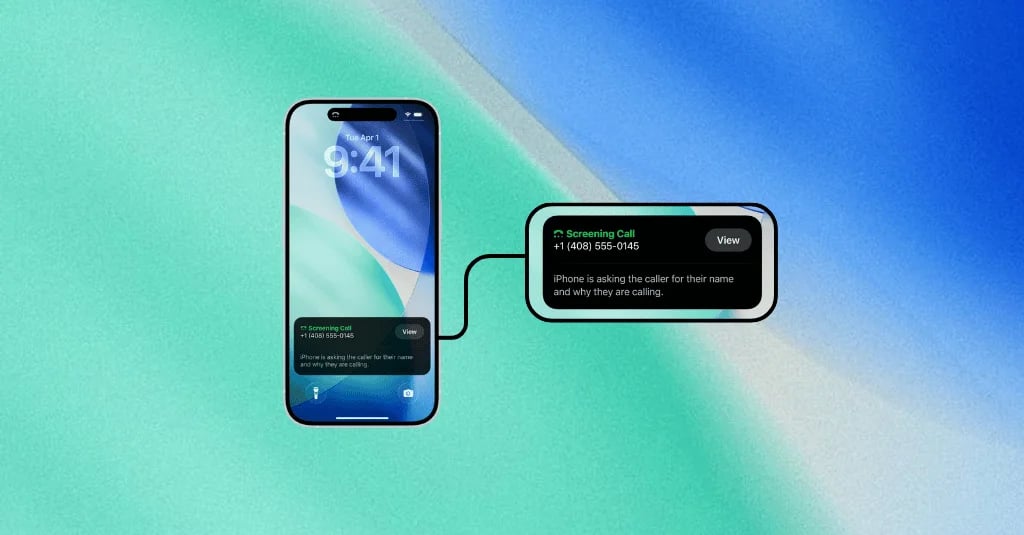
Under Settings → Apps → Phone → Screen Unknown Callers, you choose what happens when an unknown number calls. According to Apple Support, there are three options: Never, Ask Reason for Calling, or Silence. With Ask Reason for Calling, the iPhone automatically asks for the caller's name and reason without ringing. You see the answer on screen and decide whether to pick up. It asks in the language set on your iPhone, as Apple describes in its guide to screening and blocking calls.
Live Voicemail
With Live Voicemail, you see a real-time transcription of what someone says on your voicemail, and you can pick up while they're still leaving the message. According to Apple, the feature isn't available in every country, language or with every carrier.
Both features help you filter spam and avoid missing important calls. But they share one limit: they sort calls, they don't handle them. In the end, you still have to pick up or call back. For more on call screening, see our article iOS call screening in detail.
What an AI phone assistant adds
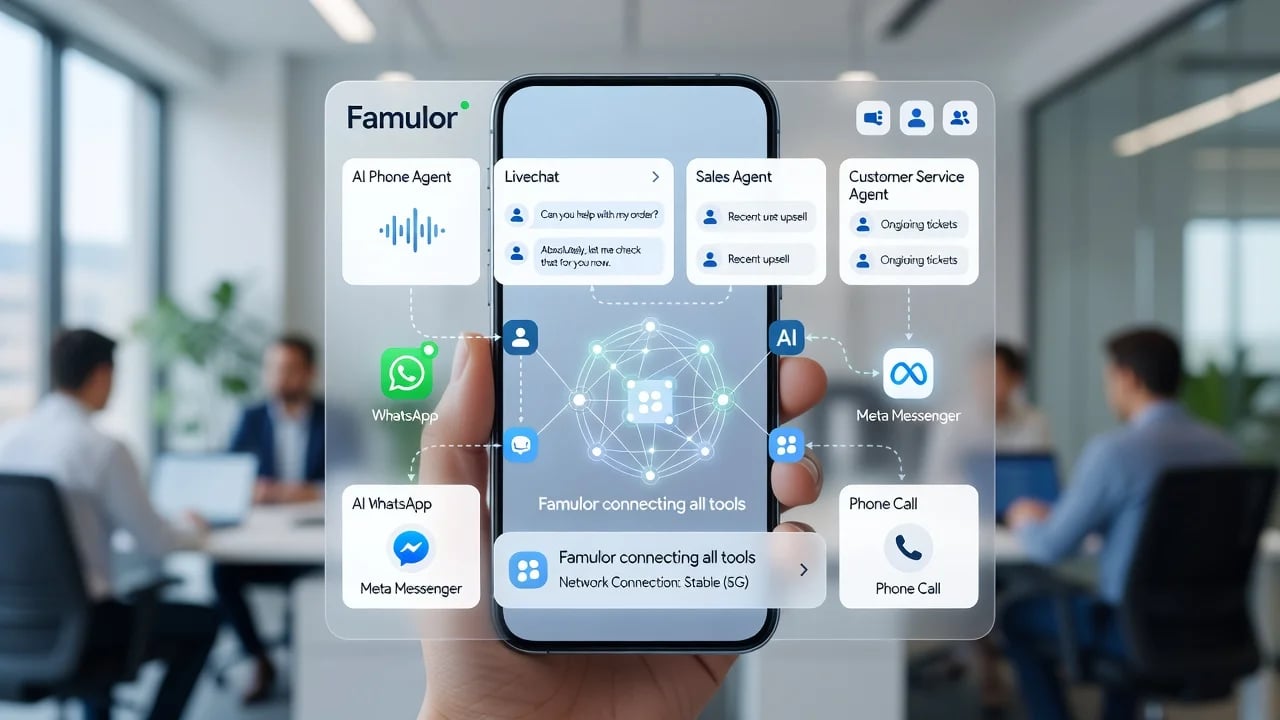
An AI receptionist holds the conversation for you. Instead of just asking who's calling, it takes care of the request:
- Answering questions: from your knowledge base, for example about opening hours, services or directions.
- Booking appointments: It checks open slots in your booking tool or the built-in booking calendar during the call and books directly.
- Transferring with a briefing: It puts urgent calls through to you or your team. With a warm transfer, you know what it's about before you say hello.
- Summaries: After every call you get a summary and can pass the results to your CRM through automations.
- Parallel calls: It answers several calls at once. Nobody hears a busy signal.
- 120 languages: It can switch languages during the call, independent of your iPhone's language.
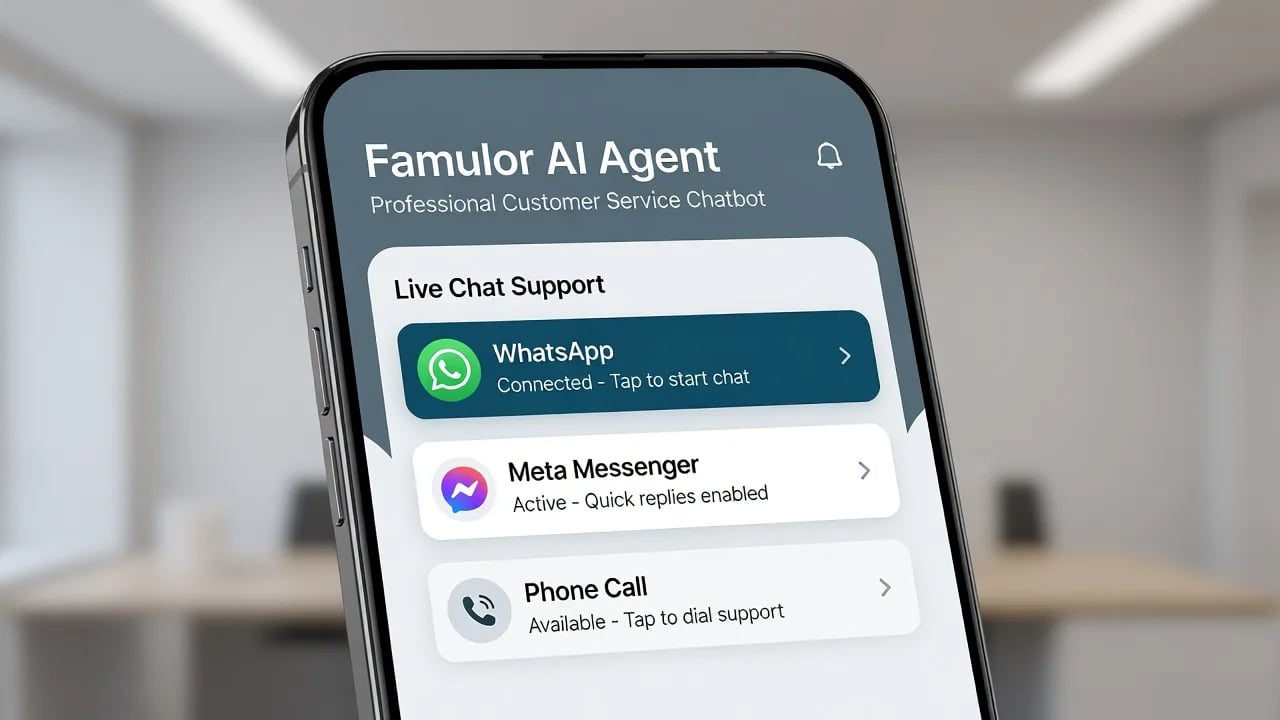
- 22 channels: Beyond the phone, you can reach customers on WhatsApp, SMS and email.
Comparison: iPhone features vs. AI phone assistant
| Criterion | iPhone Call Screening / Live Voicemail | AI phone assistant |
|---|---|---|
| Filters spam and unknown calls | Yes | Yes, through conversation rules |
| Answers callers' questions | No | Yes, from your knowledge base |
| Books appointments | No | Yes, during the call |
| Transfers to your team | No, you pick up yourself | Yes, including a briefing |
| Several calls at once | No | Yes |
| Languages | Your iPhone's language | 120 languages, switching mid-call |
| CRM and automations | No | Yes |
| Availability | Depends on country, language and carrier | Via call forwarding on any phone |
| Setup | In iPhone settings | Account, assistant, call forwarding |
When the iPhone features are enough
The built-in features are a good choice if:
- you mainly use your iPhone privately and just want to get rid of spam,
- you get few business calls and can easily call back yourself,
- callers don't have questions that need an answer right away.
An AI phone assistant makes sense when you regularly miss calls because you're working, when customers want to book appointments, when several calls come in at once, or when callers speak different languages. In short: when every missed call could be a job.
A simple test: for one week, count how many business calls you miss and how many of them wanted an appointment or information. You'll quickly see which option fits you.
The two don't exclude each other. You can use Call Screening for private calls and forward business calls you don't answer to an AI assistant.
Three typical situations from everyday work
The difference shows in the moments when you can't get to the phone.
- Trades: You're up a ladder when the iPhone rings. Call Screening tells you it's about a dripping tap. You still have to call back later. An AI assistant takes down the address and the problem, offers an open slot and only puts real emergencies through to you.
- Practice or salon: During an appointment, three people call to book. Live Voicemail transcribes their messages, but you have to book them yourself. An AI assistant answers all three calls at once and books the appointments directly.
- Consulting and sales: You're in a client meeting when a prospect calls with a question about your offer. The AI assistant answers it from your knowledge base, notes the request, and you find a summary waiting after the meeting.
What to prepare before you switch
To make the assistant useful from the first call, collect the key information first: opening hours, services, common questions and the rules for when it should put calls through to you. Decide whether it should book appointments and which calendar to use. And consider whether all calls should go to the assistant or only the ones you don't answer. To start, conditional forwarding is often the easiest route.
How to forward your iPhone to an AI assistant
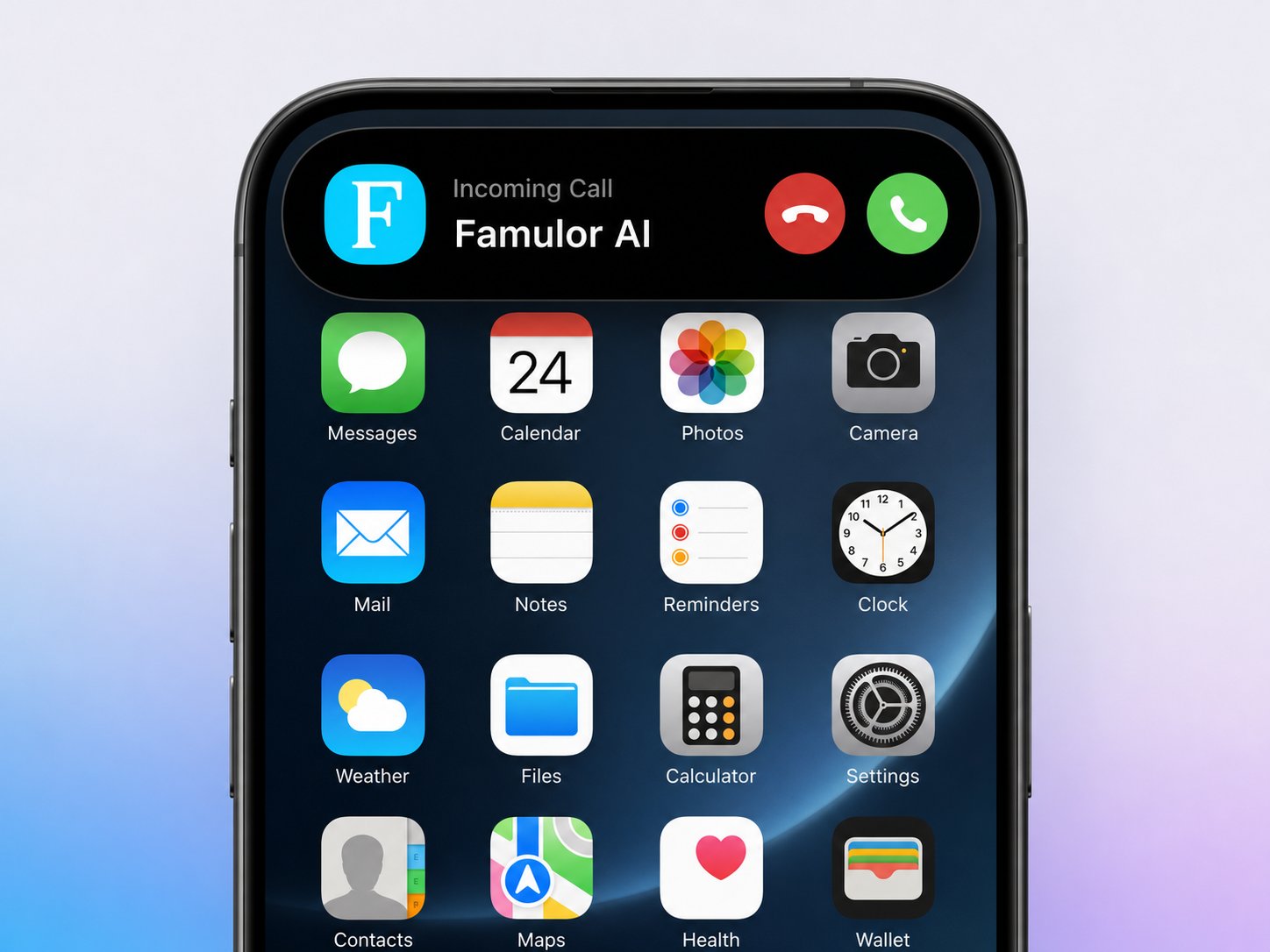
You keep your number. Calls are forwarded to your Famulor number, and the assistant answers.
- Create the assistant: Sign up for free, create an assistant and test it in the browser.
- Assign a number: Buy a number and assign it to the assistant.
- Set up forwarding: To forward all calls, go to Settings → Phone → Call Forwarding on your iPhone, turn on forwarding and enter your Famulor number.
- Test: Call your number from another phone.
If you want your iPhone to ring first, set up conditional forwarding with your carrier's codes:
- When busy: **67*[Famulor number]#
- When unreachable: **62*[Famulor number]#
- After a delay: **61*[Famulor number]*[seconds]#
Some carriers only support forwarding through their own app or account portal. All codes, including how to turn forwarding off, are in the call forwarding guide. We also explain it in detail in our call forwarding guide on the blog.
Frequently asked questions
Is iPhone Call Screening an AI answering machine?
Partly. It automatically asks unknown callers for their name and reason and shows you the answer. But it doesn't hold a conversation, answer questions or book appointments. You still decide whether to pick up.
Can I use Call Screening and an AI assistant together?
Yes. How the two interact depends on your forwarding. Conditional forwarding only applies to calls you don't answer. Test the combination with a call from an unknown number.
Does Live Voicemail work everywhere?
No. According to Apple, Live Voicemail isn't available in every country, language or with every carrier. An AI phone assistant works through call forwarding regardless.
Do I have to change my number?
No. You forward your existing iPhone number to the assistant. Your customers keep dialing the number they know.
What happens if the assistant can't answer a question?
It says so honestly, takes down the request or transfers to you, depending on what you set in the instructions. You see every open question in the summary and can add the answer to the knowledge base.
Does this work with Android too?
Yes. On Android, call forwarding is usually in the Phone app under Settings → Calls → Call Forwarding. Your carrier's codes work as well.
Conclusion
iPhone Call Screening and Live Voicemail help you filter spam and judge calls better. But they don't take work off your plate. If calls mean jobs for your business, an AI phone assistant answers questions, books appointments and passes urgent cases on, even when you can't pick up.
Writer at Famulor